When a printer receives a print command but does not produce a document, several different components may be responsible. The problem can be related to the printer, computer, network, driver, or print queue.
Step 1: Check the Printer
Verify:
- Power is ON
- Paper is loaded
- Toner/ink is available
- No error is displayed on the printer screen
- Printer status shows Ready
Step 2: Check the Connection
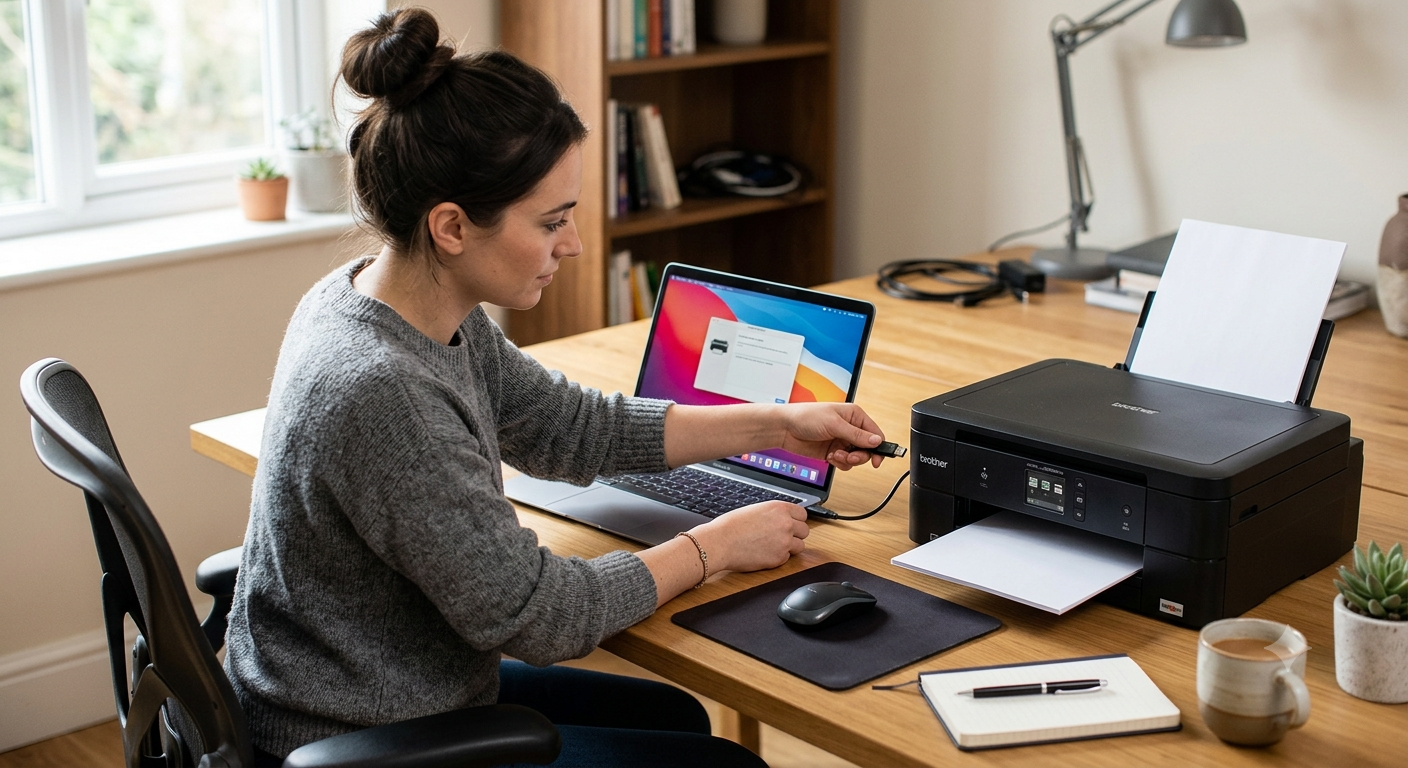
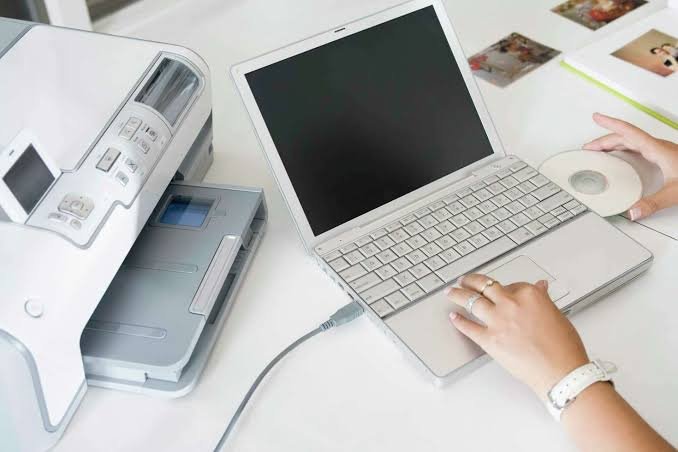
For USB printers, check the USB cable is firmly connected at both ends. For network printers, verify that the printer is connected to the network. For Wi-Fi printers, confirm that the printer and computer are connected to the same network.
Step 3: Check the Print Queue
Open the printer queue and look for documents that are stuck or showing an error. Cancel unnecessary or failed jobs and send the document again.
Step 4: Check Default Printer
Make sure the correct printer is selected as the default. Windows may send the document to another printer, a PDF printer, or a previously installed printer that is no longer available.
Step 5: Restart Print Spooler
Open services.msc, find Print Spooler and restart the service. Try printing again after the service restarts.
Step 6: Print a Test Page
Print a Windows test page from the printer properties. If the test page works but a particular application does not print, investigate the application or document settings.
Step 7: Reinstall the Driver
If none of the above steps resolve the issue, remove the printer from Windows and install the correct driver again from the manufacturer website.
Conclusion
Printer failures should be diagnosed systematically rather than immediately replacing the printer. Checking power, connectivity, queue, Spooler, driver, and application settings can identify the problem quickly and save time.