The Driver Is Unavailable message usually means Windows cannot use the currently installed printer driver correctly. This can happen after a Windows update, driver corruption, incorrect driver installation, or when an incompatible driver is being used.
Common Causes
- Corrupted printer driver
- Incorrect driver version
- Windows update broke compatibility
- Old printer driver
- Driver conflict
- Unsupported printer driver
- Incomplete printer installation
Solution 1: Restart the Computer
Start with a simple restart. Temporary Windows or driver problems may disappear after restarting the system.
Solution 2: Remove and Reinstall the Printer
Go to: Settings → Bluetooth & devices → Printers & scanners
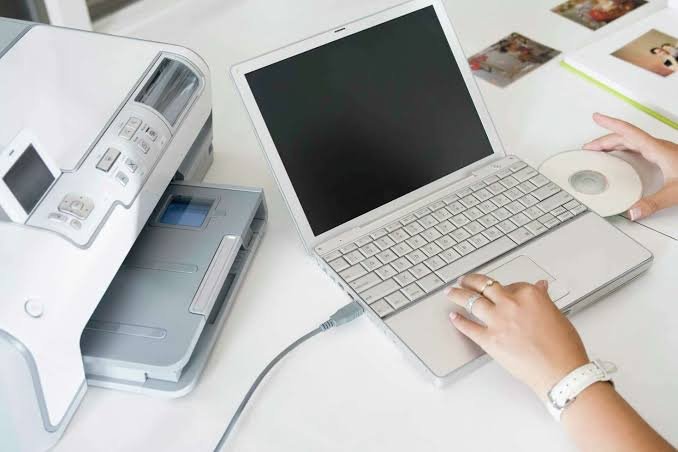
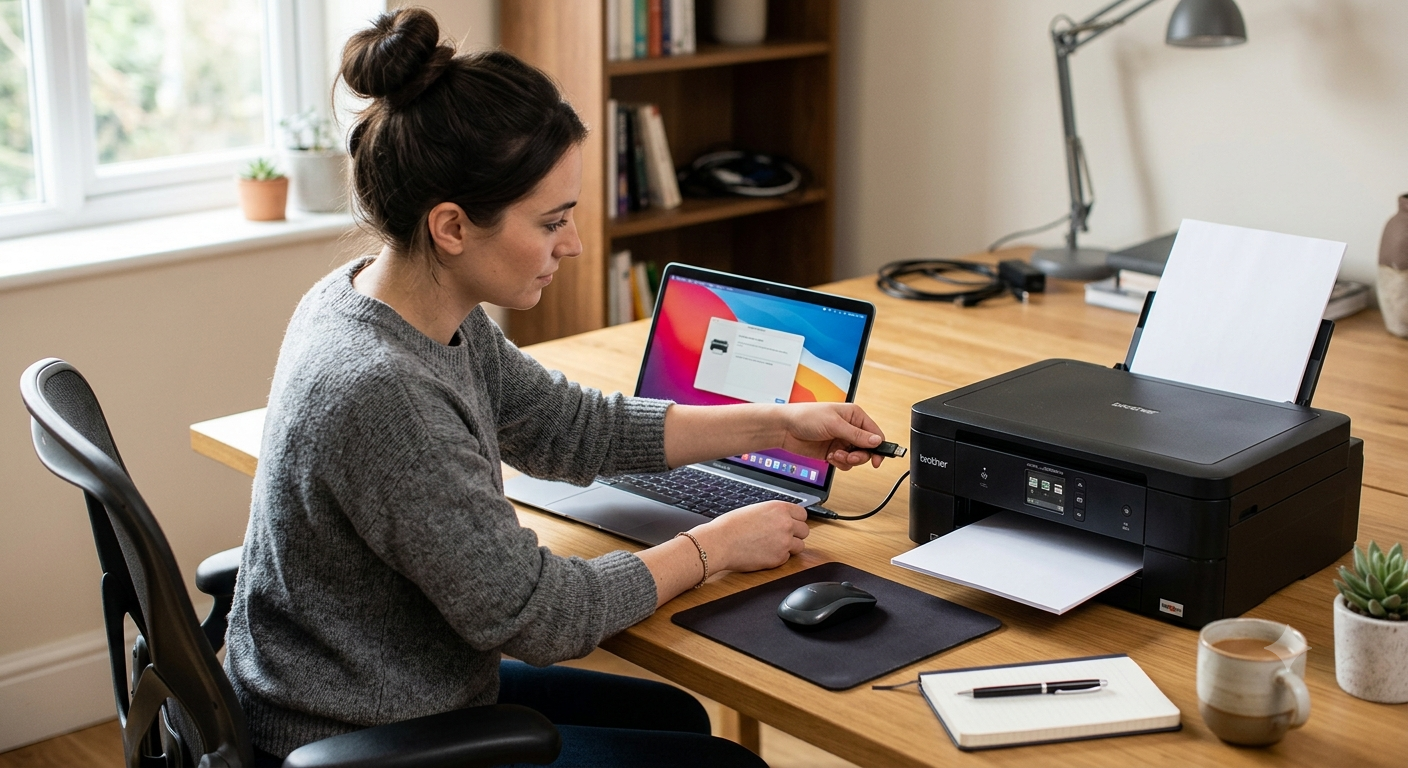
Select the affected printer and remove it. Restart the computer and add the printer again.
Solution 3: Install the Correct Driver
Identify the exact:
- Printer manufacturer
- Printer model
- Windows version
- System architecture (32-bit or 64-bit)
Then download and install the appropriate driver from the manufacturer website. Avoid installing a driver intended for a different printer model.
Solution 4: Check Device Manager
Open Device Manager and check for printer-related devices with warning icons. If necessary, uninstall the problematic device and restart Windows so the device can be detected again.
Solution 5: Restart Print Spooler
Press Windows + R, type services.msc and press Enter. Locate Print Spooler and select Restart. Then test the printer.
Final Verification
Print a test page and verify that:
- The printer is detected
- No driver error is displayed
- The print queue works
- Documents print correctly
Conclusion
A printer driver problem is usually resolved by removing the damaged printer installation and installing the correct driver. Keeping printer drivers documented and updated can help IT teams reduce recurring printer incidents.