Common Causes
A printer may appear offline because of:
- Network connection problems
- USB cable problems
- Incorrect printer IP address
- Stuck print jobs
- Print Spooler problems
- Incorrect printer selected as default
- Driver problems
- Printer sleeping or powered off
Step 1: Check the Printer
First, check the physical printer.
- Make sure the printer is powered on.
- Check the display for error messages.
- Make sure paper is available.
- Check the toner or ink.
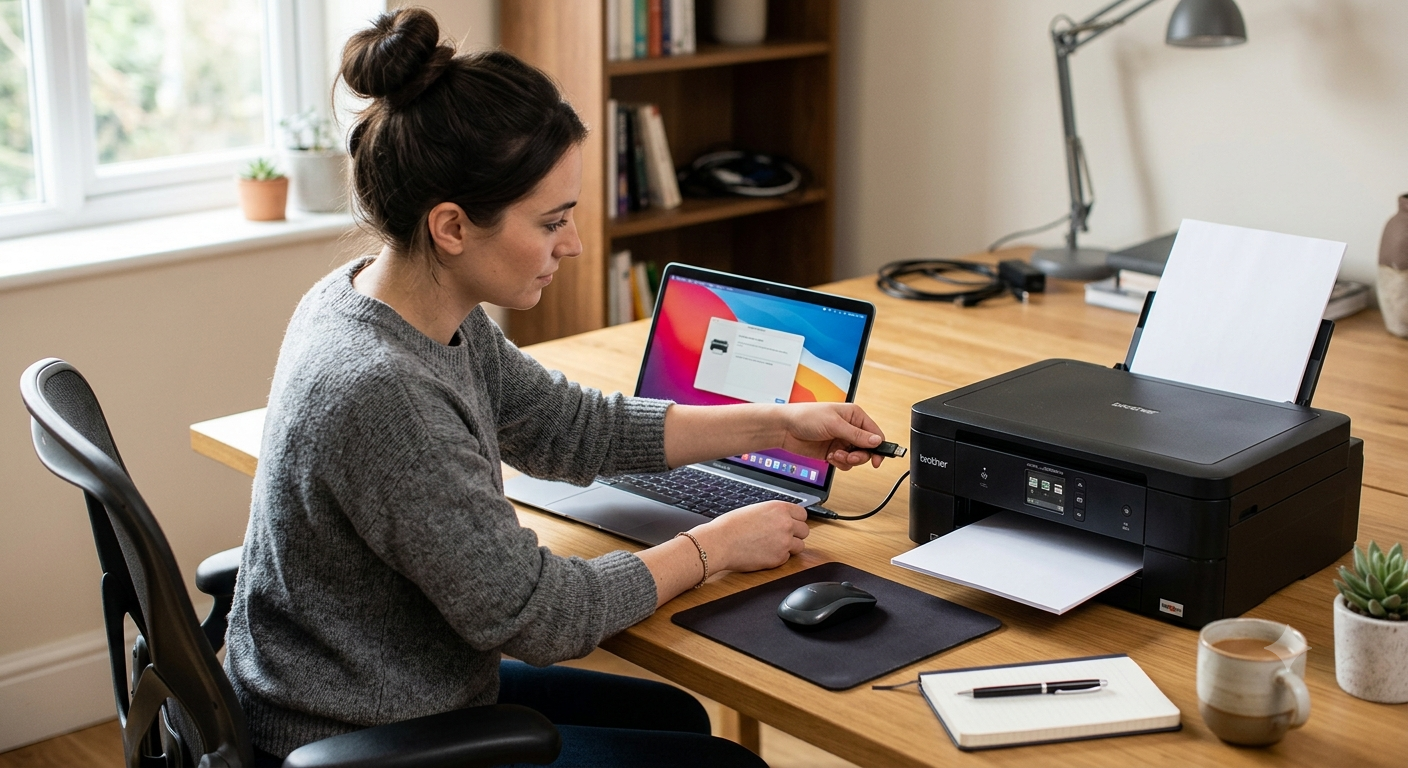
- Check the USB or network cable.
- For Wi-Fi printers, verify that the printer is connected to the correct Wi-Fi network.
Step 2: Check the Printer in Windows
Open: Settings Bluetooth and devices Printers and scanners
Select the printer and check its status.
Step 3: Clear the Print Queue
A stuck print job can prevent new documents from printing. Open the printer print queue and cancel documents that are stuck.
Step 4: Restart the Print Spooler
Press Windows + R, enter services.msc, find Print Spooler, right-click and select Restart. Then try printing again.
Step 5: Check the Network Printer
For a network printer, find its IP address. From Command Prompt, run: ping 192.168.1.100
Step 6: Reinstall the Printer
- Remove the printer from Windows.
- Download the correct driver from the manufacturer website.
- Reinstall and restart the computer.